
- Digital Marketing
- SEO
- Website Management
What is a robots.txt file: And How a robots.txt file works?
Learn what a robots.txt file is, how it works, what it can and can't do for SEO, how to test it, and how to manage AI crawlers.
 AuthorRehmat Ullah6 min readUpdated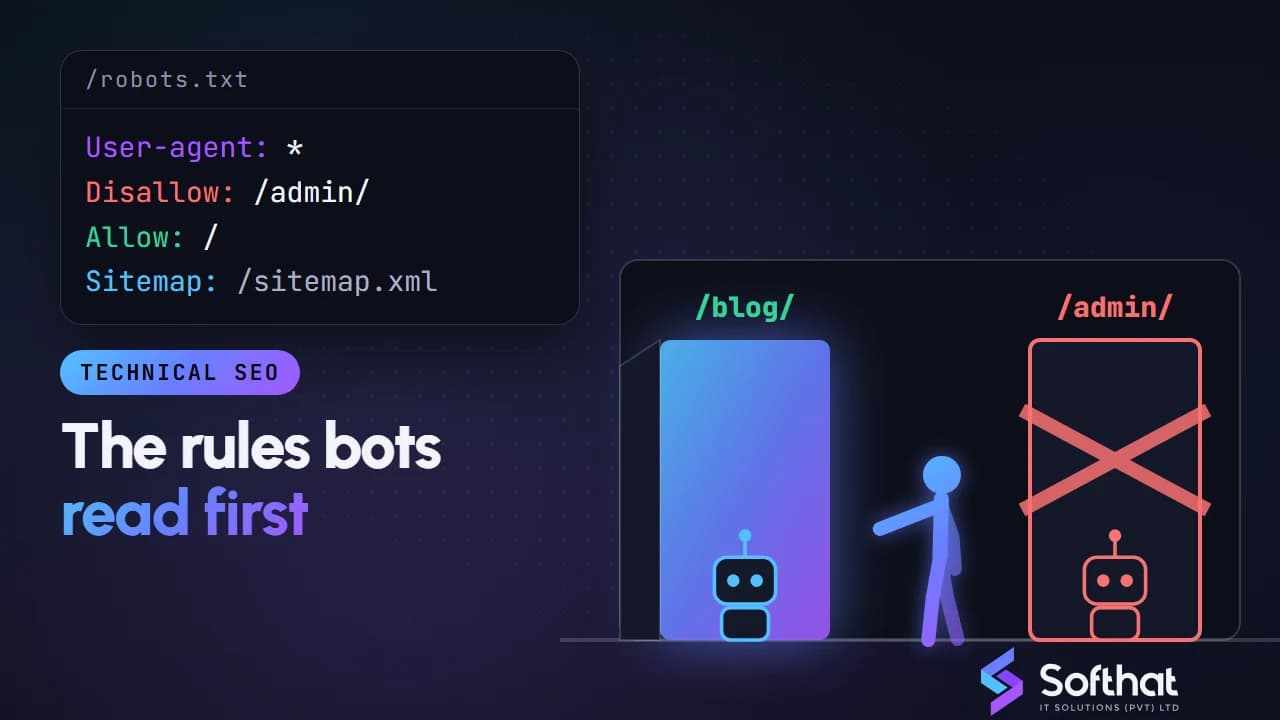
Table of Contents
Search engines and other bots visit your website constantly. The robots.txt file is the first place well-behaved crawlers check to see which parts of your site they may access.
It is a small file with a big effect: one wrong line can stop Google from crawling your whole site. In this article, we explain what a robots.txt file is, how it works, what it can and can't do, and how to manage the newer AI crawlers.
What is a robots.txt file?
1. Definition:
- A robots.txt file is a plain text file placed at the root of your website (for example,
https://www.example.com/robots.txt). It gives instructions to crawlers, also known as robots, bots or spiders, about which URLs they may crawl.
2. Purpose:
- According to Google's robots.txt introduction, robots.txt is used mainly to manage crawler traffic and avoid overloading your site with requests.
- It controls crawling, not indexing. An earlier version of this article said robots.txt controls indexing; that is a common misunderstanding, explained below.
How a robots.txt file works
1. Directives:
- A robots.txt file uses simple rules, grouped by crawler:
- User-agent: Specifies which crawler the rules apply to (e.g., Googlebot, Bingbot, or
*for all crawlers). - Disallow: Tells the crawler not to access specific pages or directories.
- Allow: Permits access to a specific path inside a disallowed directory.
- Sitemap: Gives the full URL of your XML sitemap to help search engines find your pages.
- User-agent: Specifies which crawler the rules apply to (e.g., Googlebot, Bingbot, or
- Rules like
noindexinside robots.txt are not supported. Google stopped supporting noindex in robots.txt on 1 September 2019.
2. Example of a robots.txt file:
Disallow: /private/
Allow: /private/public-page.html
Sitemap: https://www.example.com/sitemap.xml
- In this example:
- All crawlers are asked not to access the /private/ directory.
- An exception is made for /private/public-page.html, which may be crawled.
- The location of the XML sitemap is given to help search engines find all relevant pages.
What robots.txt Can't Do
1. It Doesn't Keep Pages Out of Google:
- Google states that robots.txt is not a mechanism for keeping a page out of Google. If other pages link to a blocked URL, it can still appear in search results, just without a description.
- To keep a page out of search results, allow crawling and add a
noindexrobots meta tag (orX-Robots-TagHTTP header), or put the page behind a login. Google can only see anoindextag if the page is not blocked in robots.txt.
2. It Isn't a Security Tool:
- robots.txt is publicly readable, so listing
/admin/or/backup/in it can actually point people to those paths. Reputable crawlers follow the rules, but malicious bots can ignore them. - Protect private areas with passwords, proper authentication and server permissions, not robots.txt.
Why a robots.txt file is important for SEO
1. Managing Crawling on Large Sites:
- On large sites, blocking low-value URL patterns, such as internal search results or endless filter combinations, helps Google spend its crawl budget on important pages. For small sites this rarely matters.
2. Reducing Crawling of Duplicate URLs:
- robots.txt can stop crawlers from fetching parameter-based duplicates. But for duplicates you want consolidated, use redirects or canonical tags instead, because Google can't see a canonical tag on a blocked page.
3. Keeping Crawlers Out of Unfinished Areas:
- You can ask crawlers not to fetch staging folders or work-in-progress sections. For a full staging site, password protection is the safer choice, since blocked URLs can still be indexed if linked.
4. Enhancing Site Performance:
- Preventing unnecessary crawling of heavy or endless URLs can reduce server load, which helps on shared hosting plans.
Managing AI Crawlers with robots.txt
AI companies now run their own crawlers, and robots.txt is how you tell them what they may use. The key point is that search crawlers and AI training crawlers are often separate, so you can treat them differently:
- Google-Extended: Controls whether content Google crawls may be used to train Gemini models and for grounding. Google says blocking it does not affect inclusion or ranking in Google Search.
- GPTBot and OAI-SearchBot: OpenAI uses GPTBot for content that may train its models, and OAI-SearchBot to show websites in ChatGPT search. Blocking GPTBot does not block OAI-SearchBot.
Example: allow search, opt out of AI training:
User-agent: GPTBot

Disallow: /


User-agent: Google-Extended

Disallow: /
Think before blocking everything. If you want your business to be cited in AI-powered answers, keep search crawlers such as Googlebot and OAI-SearchBot allowed.
How to create and implement a robots.txt file
1. Creating a robots.txt file:
- A robots.txt file can be created with any plain text editor. Save it as "robots.txt" (lowercase) with UTF-8 encoding. Many CMS platforms, including WordPress and Shopify, generate one automatically and let you edit it.
2. Common directives:
- Disallow All Crawlers from a Directory:
User-agent: *

Disallow: /directory/ - Allow Specific Pages within a Disallowed Directory:
User-agent: *

	Disallow: /directory/

Allow: /directory/specific-page.html - Specifying the Sitemap Location:
Sitemap: https://www.example.com/sitemap.xml
3. Uploading the robots.txt file:
- Upload the file to the root of your domain, so it is available at
https://www.example.com/robots.txt. Each subdomain (such asshop.example.com) needs its own file.
4. Testing the robots.txt file:
- The old robots.txt Tester in Google Search Console was retired in December 2023. Use the robots.txt report in Search Console instead: it shows which robots.txt files Google found, when they were last crawled, and any warnings or errors.
- To check whether a specific page is blocked, use the URL Inspection tool in Search Console.
Best practices for managing a robots.txt file
1. Keep it Simple:
- Use clear and short rules. Complex patterns lead to mistakes, and a stray
Disallow: /blocks your entire site.
2. Regularly Review and Update:
- Review robots.txt after redesigns, migrations and plugin changes. It is common for a staging site's "block everything" rule to go live by accident.
3. Monitor Crawl Stats:
- Use the Crawl stats and robots.txt reports in Google Search Console to see how Google interacts with your site and to catch fetch errors early.
4. Avoid Blocking CSS and JavaScript:
- Don't block CSS and JavaScript files your pages need. Google renders pages, and it needs these files to understand layout and content.
5. Use the Right Tool for the Job:
- Use robots.txt for crawling,
noindexfor indexing, canonical tags for duplicates, and authentication for privacy.
Conclusion
A robots.txt file is a simple way to guide how crawlers move through your site. Used well, it keeps crawlers away from low-value URLs and lets you choose how AI crawlers use your content.
Just remember its limits: it doesn't remove pages from Google and it doesn't protect sensitive information. Test changes in Search Console before and after you publish them.
Elevate Your SEO Strategy with Expert Robots.txt Management!
Worried your robots.txt is blocking the wrong pages, or unsure how to handle AI crawlers? Softhat IT Solutions reviews crawling and indexing setups for websites across Pakistan. Explore our SEO services, or book a free strategy call to check your configuration.