
- Speed Optimization
- Web Development
Interaction to Next Paint (INP): The Core Web Vital You Need to Fix
Interaction to Next Paint (INP) measures how fast your site responds to taps and clicks. Learn the thresholds, how to measure INP and practical fixes.
 AuthorRehmat Ullah7 min read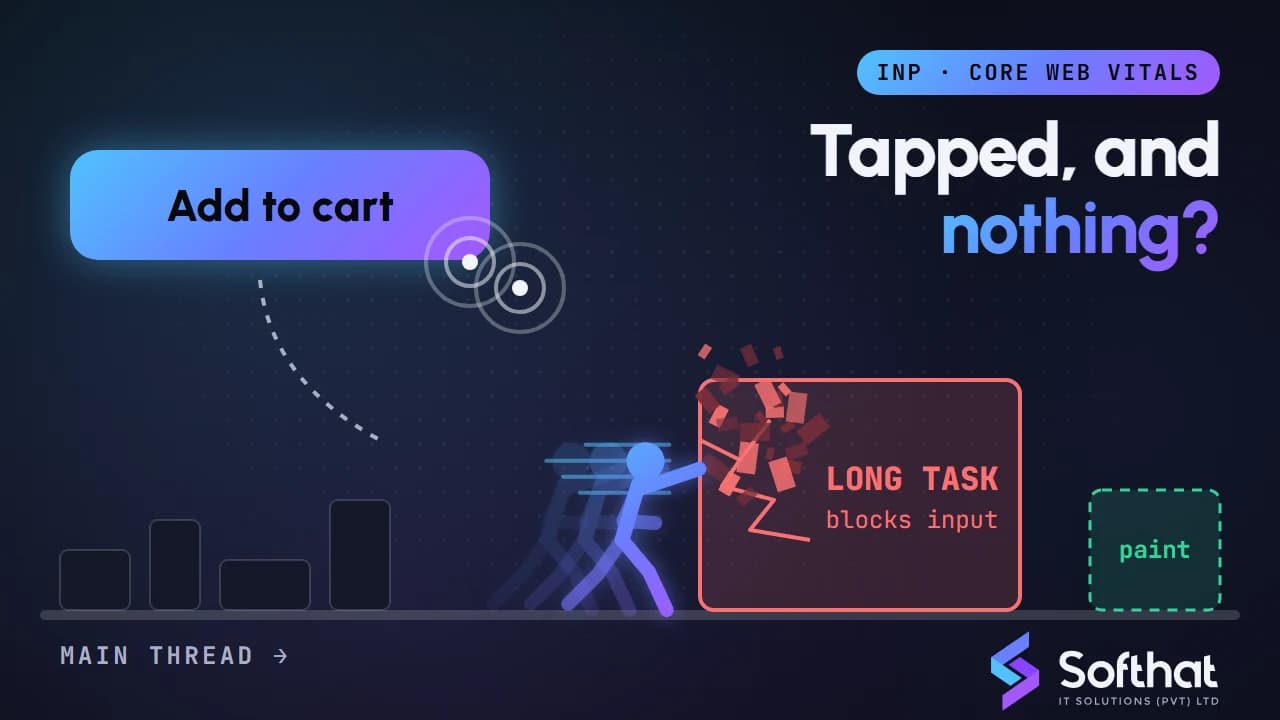
Table of Contents
A customer taps "Add to cart" on your website. Nothing seems to happen, so they tap again. Now there are two items in the cart, or they give up and leave.
That delay is exactly what Interaction to Next Paint (INP) measures. INP is one of Google's three Core Web Vitals, and it is often the hardest one to fix on busy, script-heavy sites. This guide explains what INP is, how to measure it and the fixes that make a real difference.
What is Interaction to Next Paint?
INP measures how quickly a page responds visually after a user interacts with it. According to web.dev, INP "observes the latency of all interactions a user has made with the page, and reports a single value which all (or nearly all) interactions were beneath" (web.dev).
Only certain interactions count (web.dev):
- Clicking with a mouse.
- Tapping on a touchscreen.
- Pressing a key on a physical or on-screen keyboard.
Hovering, scrolling and zooming are not included. If a visitor never clicks, taps or types, no INP value is recorded for that visit.
The metric reports the slowest interaction on the page, but ignores one outlier for every 50 interactions. This stops a single random hiccup on a highly interactive page from defining the score (web.dev).
Why INP replaced First Input Delay
INP became a Core Web Vital on 12 March 2024, replacing First Input Delay (FID) (web.dev).
FID only measured the delay before the browser started handling the first interaction. INP looks at the full time to the next visual update, across interactions for the whole visit. That makes it a much more honest picture of how a page feels to use.
If you read our earlier guide to Core Web Vitals, note that FID has now been replaced by INP.
INP thresholds: what counts as good
Google measures INP at the 75th percentile of page loads, split by mobile and desktop (web.dev).
| INP at 75th percentile | Rating |
|---|---|
| 200 ms or less | Good |
| Over 200 ms and up to 500 ms | Needs improvement |
| Over 500 ms | Poor |
In simple terms, at least 75% of visits should see interactions respond in under 200 milliseconds (web.dev).
Google's Search documentation says good Core Web Vitals align with what its core ranking systems seek to reward, and recommends site owners achieve them (Google Search Central). Speed is one signal among many, as our guide on page speed and SEO explains, but a slow checkout or enquiry form costs you customers regardless of rankings.
The three parts of every interaction
To fix INP, you need to know where the time goes. Every interaction has three phases (web.dev):
- Input delay: the wait before your event handlers can start running, usually because the main thread is busy.
- Processing duration: the time your event handler code takes to run.
- Presentation delay: the time for the browser to calculate layout and paint the next frame.
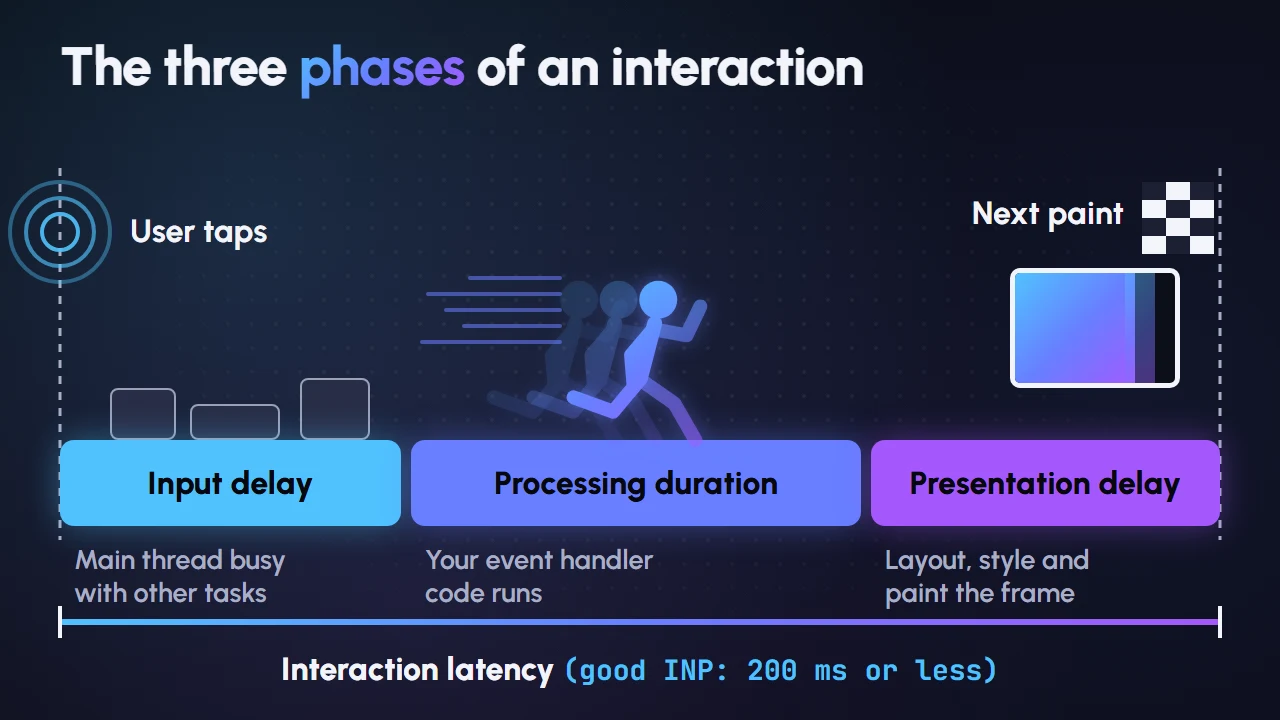
Each phase has different causes, so diagnose first and fix second.
How to measure INP on your site
Start with real-user (field) data, then move to the lab to reproduce problems. This is the approach web.dev recommends (web.dev).
Field tools
- PageSpeed Insights: shows real-user INP from the Chrome User Experience Report (CrUX), which collects data from Chrome users who have opted in (web.dev).
- Search Console Core Web Vitals report: groups similar URLs and rates each group Good, Need improvement or Poor for mobile and desktop. After a fix, you can start a 28-day validation (Search Console Help).
- The web-vitals JavaScript library: its
onINPfunction lets you send INP from real visits to your analytics (web.dev). The attribution build adds details such asinteractionTarget, the element involved, and a breakdown of the three phases (web.dev).
Low-traffic sites may not have enough CrUX data to show a score. In that case, the web-vitals library or a real user monitoring (RUM) tool is the way to collect your own.
Lab tools
- Chrome DevTools Performance panel: captures your local INP live as you interact, lists interactions and lets you simulate a slower CPU (Chrome for Developers).
- Lighthouse: cannot measure INP directly because it does not interact with the page. Total Blocking Time is used as a lab proxy (web.dev).
Always test with CPU throttling. Many visitors use mid-range Android phones, which run JavaScript far slower than a developer's laptop.
A simple INP workflow
- Check the field data. Open PageSpeed Insights for your key pages and the Core Web Vitals report in Search Console. Note which URL groups are rated Poor or Need improvement on mobile.
- Find the slow interaction. Use the web-vitals attribution build to log which element and which phase cause the delay.
- Reproduce it in DevTools. Record the same click or tap with CPU throttling on, and look for long tasks around the interaction.
- Fix one cause at a time. Change one thing, then measure again so you know what worked.
- Validate. Deploy, then start validation in Search Console and watch the field data over the following weeks.
How to fix a poor INP score
Most INP problems come down to too much work on the main thread. Here are the fixes that matter most, in rough order of impact.
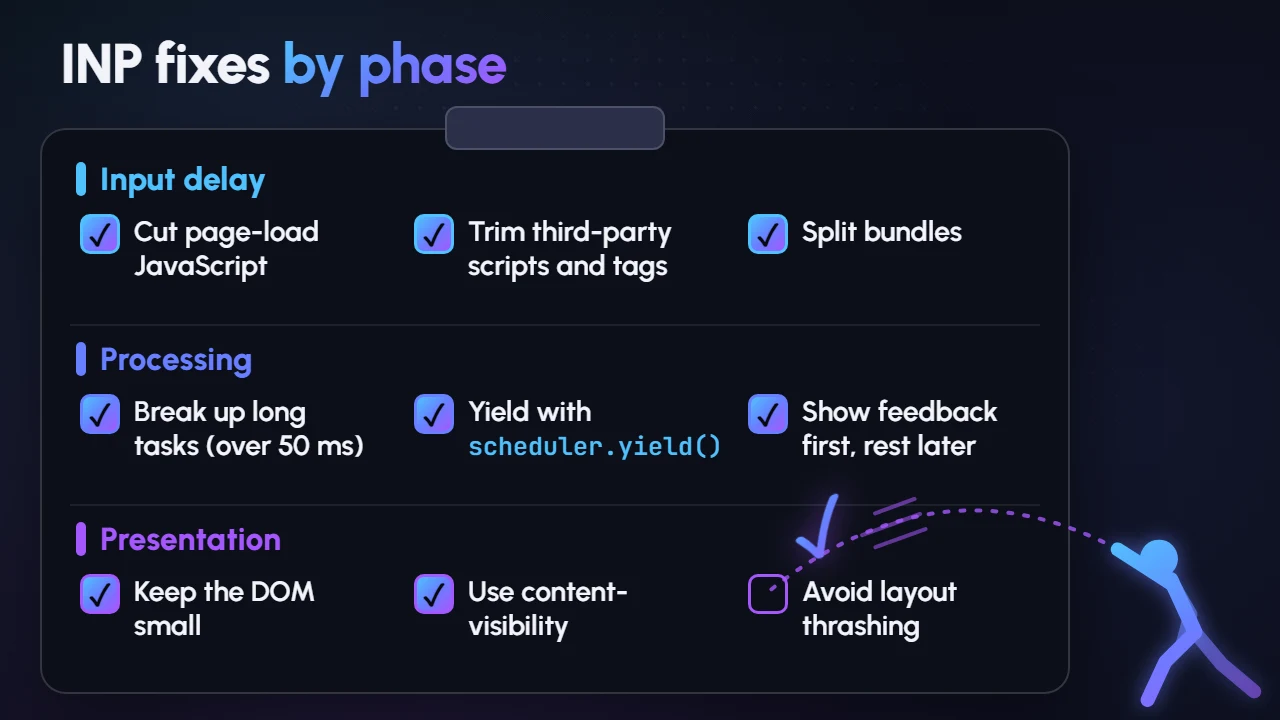
1. Break up long tasks
A long task is any piece of work on the main thread that takes more than 50 milliseconds. While it runs, the browser cannot respond to the user (web.dev).
The fix is to yield to the main thread: do the urgent, visible work first, then pause so the browser can handle input before continuing.
2. Yield with scheduler.yield()
The modern way to yield is scheduler.yield(). It is supported in Chrome and Edge 129+ and Firefox 142+, but not in Safari at the time of writing, so use a fallback (web.dev):
function yieldToMain() {
  if (globalThis.scheduler?.yield) {
    return scheduler.yield();
  }
  return new Promise((resolve) => setTimeout(resolve, 0));
}

async function handleAddToCart() {
  updateCartIcon();       // visible feedback first
  await yieldToMain();    // let the browser paint
  sendAnalytics();        // background work after
}
The user sees the cart update immediately, and analytics runs a moment later without blocking the response.
3. Reduce input delay from page-load scripts
Long tasks while the page loads are a common cause of input delay. Overlapping interactions, such as fast typing, can also stack up (web.dev).
Cut the JavaScript that runs on load. Remove unused libraries, split bundles and delay code that is not needed for the first interaction.
4. Tame third-party scripts
Chat widgets, heatmaps, ad tags and multiple analytics tools all compete for the main thread. web.dev advises loading third-party scripts asynchronously unless they must run before rendering, lazy loading non-critical embeds and removing scripts that are not essential (web.dev).
Audit your tag manager every few months. Old campaign pixels are often still firing on every page.
5. Keep the DOM small
A large DOM makes every style and layout update slower, which adds to presentation delay. web.dev recommends minimizing DOM size and using the CSS content-visibility property to lazily render off-screen content (web.dev).
Lighthouse has historically warned when the body has more than about 800 nodes and flagged an error above about 1,400 (Chrome for Developers). Page builders and mega menus are frequent culprits.
6. Avoid layout thrashing
Layout thrashing happens when code changes styles and then reads layout values in the same task, forcing the browser to recalculate repeatedly (web.dev). Batch your reads first, then your writes.
INP issues on common platforms
A few patterns come up again and again on Pakistani business websites.
- WordPress with heavy page builders: large DOMs and many plugins loading scripts on every page. Remove unused plugins and load scripts only where needed.
- E-commerce stores: product filters, variant pickers and cart drawers often run heavy code on each click. The checkout is where slow responses hurt most, so test it carefully, including any payment gateway scripts.
- Single-page apps (React, Next.js and similar): large re-renders after state changes. Keep state local, memoize expensive components and avoid rendering long lists at once.
Key takeaways
- INP measures the time from a click, tap or key press to the next visual update.
- Good is 200 ms or less at the 75th percentile. Poor is over 500 ms.
- INP replaced FID as a Core Web Vital on 12 March 2024.
- Use PageSpeed Insights, Search Console and the web-vitals library for field data, and DevTools for debugging.
- Most fixes involve less main-thread work: break up long tasks, yield with
scheduler.yield(), trim third-party scripts and keep the DOM lean.
Make your website respond instantly
A responsive site feels trustworthy, and trust turns visitors into enquiries and sales. INP fixes often need changes to code, plugins and third-party tags, so they work best as part of a planned performance project.
Our web development team audits Core Web Vitals, fixes slow interactions and builds fast websites from the ground up. Book a free strategy call to review your site.